
Style Gallery
AI Image Prompts by Style
See one scene in six styles. Pick a look, copy the prompt, or try it in the matching generator.
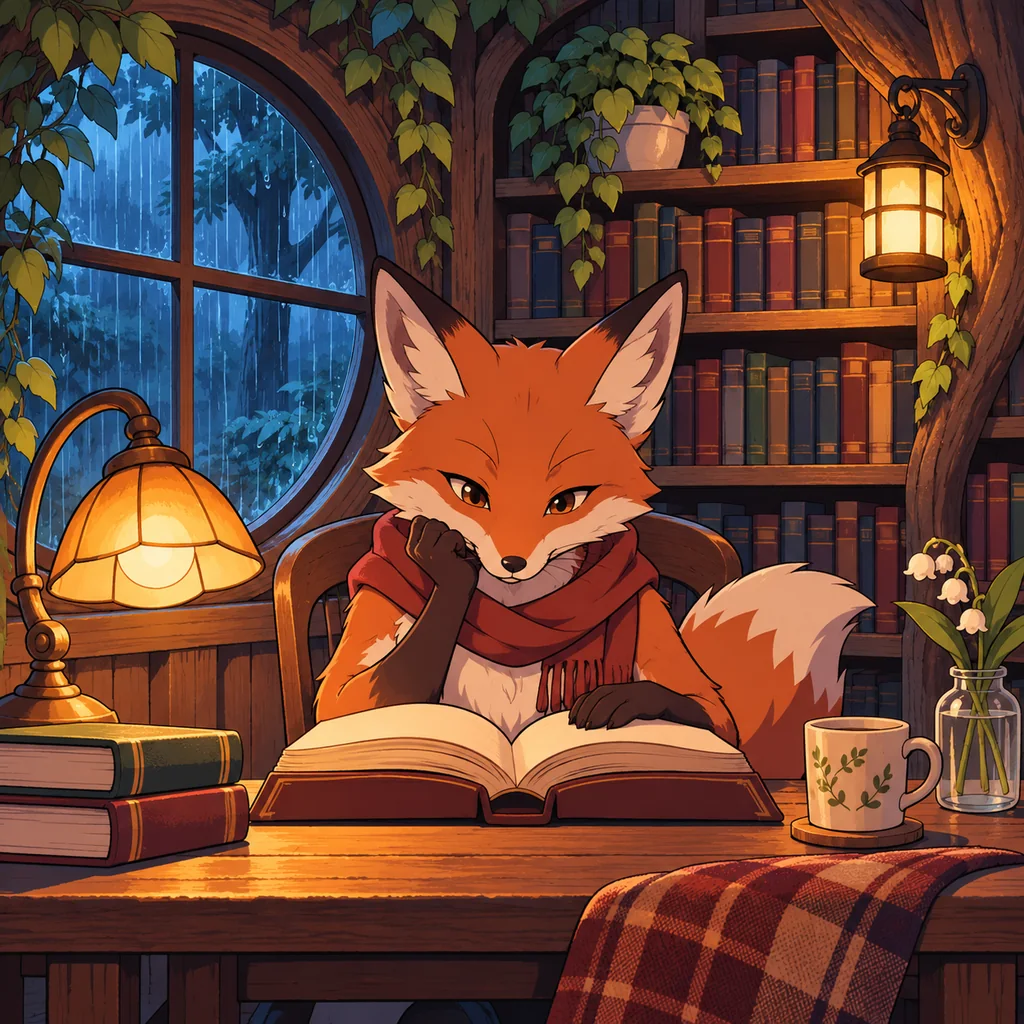
Anime
Crisp outlines, cel shading, and a rainy evening glow.
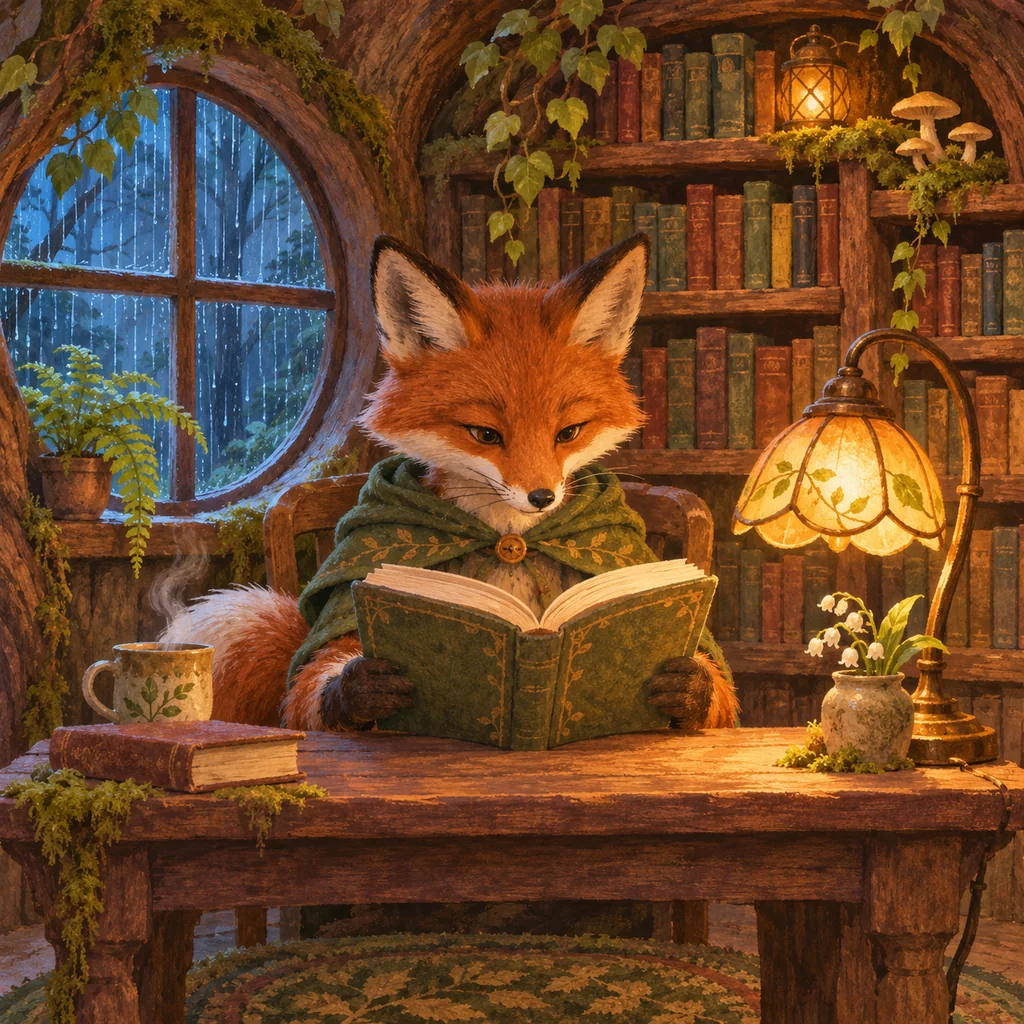
Ghibli-inspired
Hand-painted textures, lush greens, and warm storybook light.
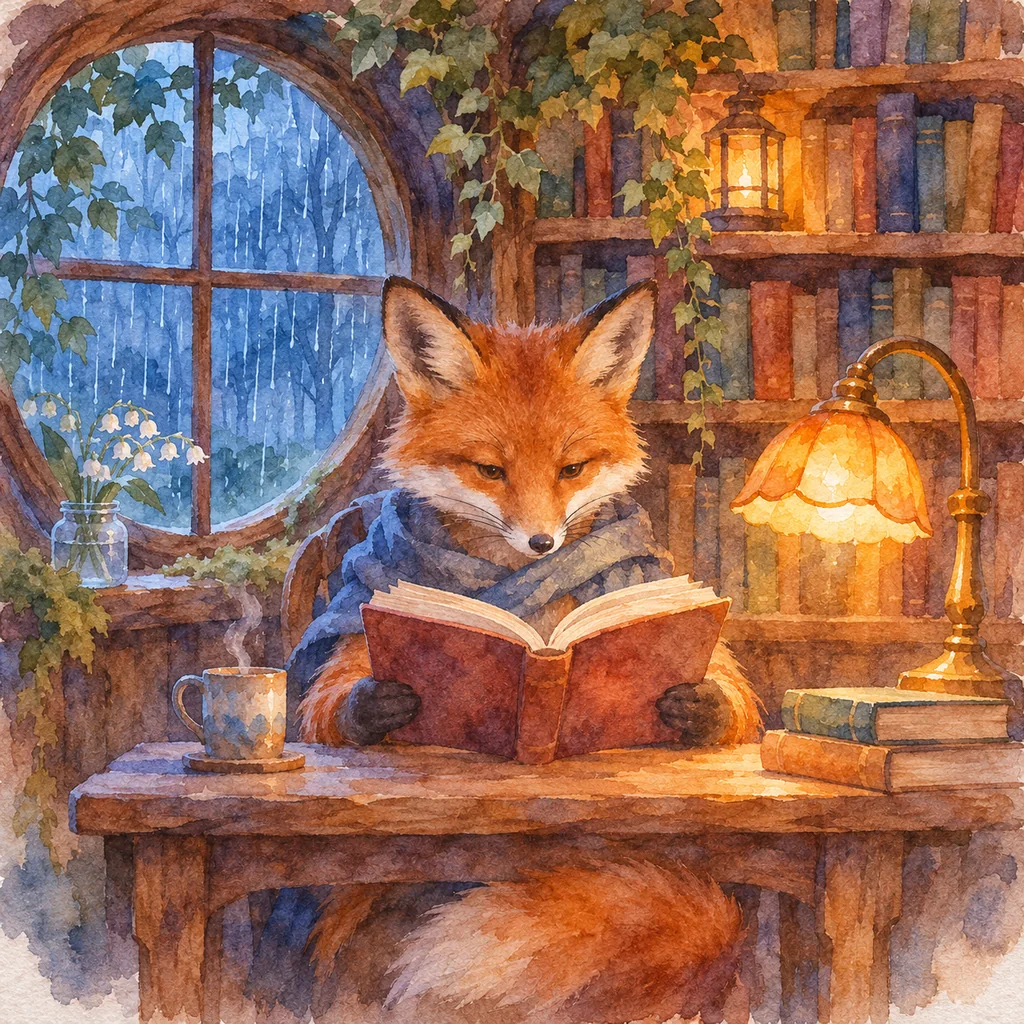
Watercolor
Soft washes and visible paper grain.
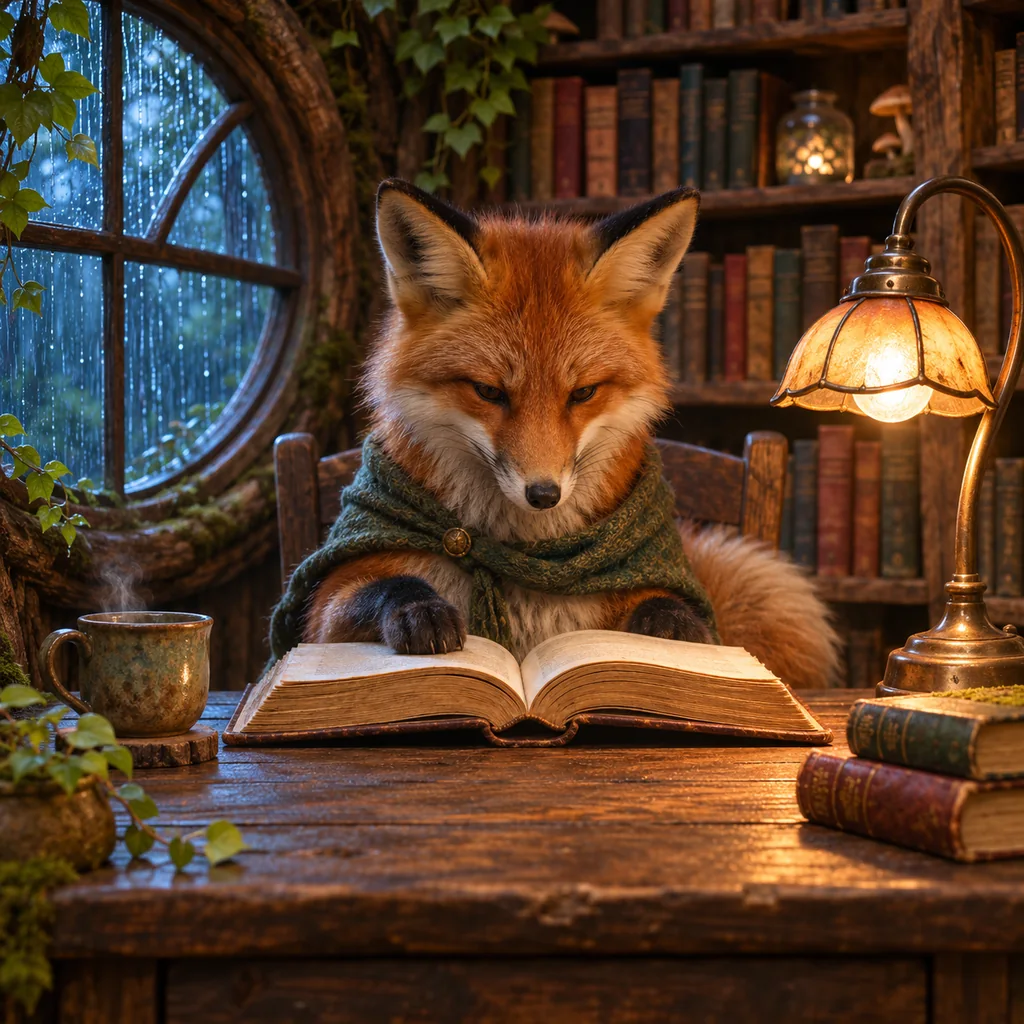
Photorealistic
Natural-looking fur, wood grain, and photographic light.
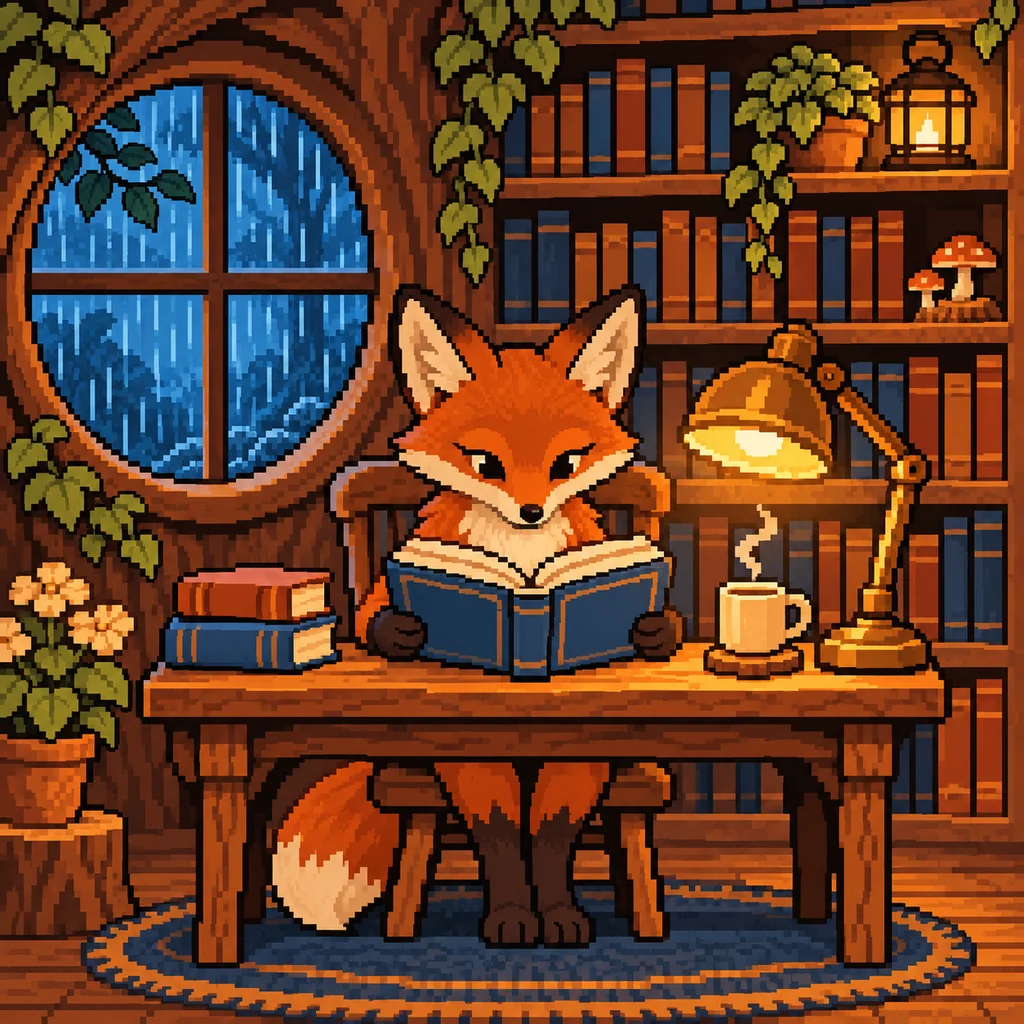
Pixel art
Crisp pixel clusters and a limited amber-and-blue palette.
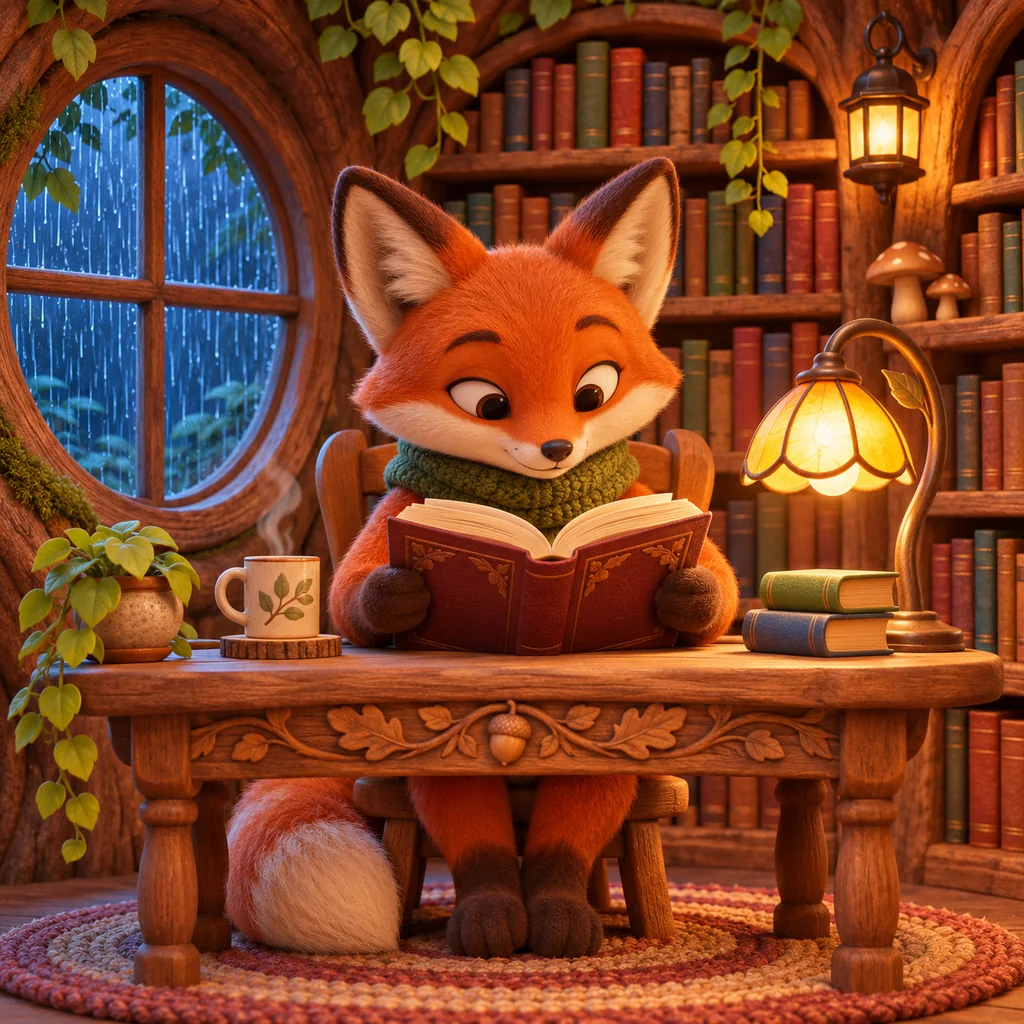
3D cartoon
Rounded shapes, tactile materials, and soft shadows.
Style comparison
Which style fits your project?
Use the same scene to compare outlines, textures, lighting, and the amount of detail in each look.
From reference to your own image
Start with a subject
Name one subject, an action, and a setting. Keep that part of the prompt fixed while comparing styles.
Change one visual cue
Adjust a single element at a time, such as the lighting, palette, or texture. That makes it easier to see what each edit changes.
Or start with a photo
Choose Photo in the generator, then describe what to keep, such as the pose or framing, and what to change, such as the paint texture.
Anime
Crisp outlines, cel shading, and a rainy evening glow.
Prompt
A red fox reading an open book at a small wooden desk in a woodland library. Bookshelves behind it, a round window to the left, warm lamplight inside and blue rain outside. Eye-level view, centered subject, square composition, no readable text or logos. Anime illustration with clean ink lines, cel shading, and cool blue shadows against warm amber light.
Style guide
Working with Anime
Good for
Character concepts, storyboard frames, and illustrated scenes.
What to look for
Look at the fox’s ears and scarf. Dark contour lines and hard-edged shadows keep both shapes readable against the crowded shelves.
What to check
Check that the face and hands read at thumbnail size. If the background competes with the character, ask for a quieter backdrop and a stronger silhouette.
Prompt edits to try
These are text examples you can adapt in the generator.
Clarify the silhouette
Replace the busy shelves with a softly drawn library aisle. Keep crisp contour lines, two-tone cel shading, and a clear outline around the fox.
Try a storyboard frame
An original anime courier waiting at a rainy tram stop, waist-up framing, sharp cel shadows, one bright umbrella, muted background details.
Ghibli-inspired
Hand-painted textures, lush greens, and warm storybook light.
Prompt
A red fox reading an open book at a small wooden desk in a woodland library. Bookshelves behind it, a round window to the left, warm lamplight inside and blue rain outside. Eye-level view, centered subject, square composition, no readable text or logos. Hand-painted storybook animation with moss greens, soft brush textures, and gentle amber lighting.
Style guide
Working with Ghibli-inspired
Good for
Storybook settings, cozy interiors, and pastoral scenes.
What to look for
Look for moss greens in the shelves and foliage, textured brushwork in the wood, and soft transitions where the lamplight meets the room.
What to check
Check that the scene still has one clear focal point. If the foliage and props feel crowded, keep a single foreground detail and simplify the far shelves.
Prompt edits to try
These are text examples you can adapt in the generator.
Make the light gentler
Replace the bright lamp with soft late-afternoon window light, warm muted greens, and a lightly painted background.
Try a pastoral setting
A tiny bakery at the edge of a forest, bread cooling in an open window, soft brush textures, warm light, and a few plants beside the door.
Watercolor
Soft washes and visible paper grain.
Prompt
A red fox reading an open book at a small wooden desk in a woodland library. Bookshelves behind it, a round window to the left, warm lamplight inside and blue rain outside. Eye-level view, centered subject, square composition, no readable text or logos. Transparent watercolor on cold-pressed paper, with soft wet-on-wet edges and layered blue and amber washes.
Style guide
Working with Watercolor
Good for
Editorial illustrations, stationery, and atmospheric landscapes.
What to look for
Look at the blue rain and the lower edge of the desk. The pigment softens into nearby colors and paper texture stays visible.
What to check
Check whether the focal point has a few clear edges. If the scene turns muddy, name two pigments and ask for a dry edge around the face or book.
Prompt edits to try
These are text examples you can adapt in the generator.
Keep one sharp detail
Use transparent cobalt and warm ochre washes. Keep a dry-brush edge around the fox’s face and let the shelves dissolve into wet paper.
Try an editorial still life
A glass greenhouse in blue evening rain, loose wet-on-wet watercolor, cold-pressed paper, two pigments, and unpainted highlights.
Photorealistic
Natural-looking fur, wood grain, and photographic light.
Prompt
A red fox reading an open book at a small wooden desk in a woodland library. Bookshelves behind it, a round window to the left, warm lamplight inside and blue rain outside. Eye-level view, centered subject, square composition, no readable text or logos. Photorealistic fantasy scene with realistic fox fur, worn wood grain, soft practical lighting, and shallow depth of field.
Style guide
Working with Photorealistic
Good for
Product mockups, still lifes, and reference imagery.
What to look for
Compare the fur, worn wood and lamp shade. Their textures respond differently to the same light, and the background falls gently out of focus.
What to check
Zoom in to check anatomy, reflections, and repeated details. If light seems inconsistent, specify one key light and where it falls.
Prompt edits to try
These are text examples you can adapt in the generator.
Control the light source
Use one warm desk lamp as the key light, soft blue window fill, realistic fur strands, and a shallow depth of field.
Try a product still life
A handmade ceramic cup on a weathered desk, soft side light from a window, subtle glaze texture, neutral background, no logo.
Pixel art
Crisp pixel clusters and a limited amber-and-blue palette.
Prompt
A red fox reading an open book at a small wooden desk in a woodland library. Bookshelves behind it, a round window to the left, warm lamplight inside and blue rain outside. Eye-level view, centered subject, square composition, no readable text or logos. Detailed pixel art with crisp square pixels, a limited amber-and-blue palette, and clearly readable shapes.
Style guide
Working with Pixel art
Good for
Game concept art, pixel avatars, and environment studies.
What to look for
Look at the fox’s face and the round window. Small blocks of color describe the forms, with amber and blue doing most of the contrast work.
What to check
View the result at its intended size. For game assets, check the grid, transparency and sprite alignment in a pixel editor.
Prompt edits to try
These are text examples you can adapt in the generator.
Simplify the palette
Use a limited amber-and-blue palette, large color clusters, a clear fox silhouette, and fewer tiny objects on the shelves.
Try a game environment
A woodland shop interior in 16-bit-inspired pixel art, chunky color clusters, clean floor tiles, a narrow palette, and clear object silhouettes.
3D cartoon
Rounded shapes, tactile materials, and soft shadows.
Prompt
A red fox reading an open book at a small wooden desk in a woodland library. Bookshelves behind it, a round window to the left, warm lamplight inside and blue rain outside. Eye-level view, centered subject, square composition, no readable text or logos. Stylized 3D cartoon with rounded shapes, soft fur, carved wood, and warm miniature-set lighting.
Style guide
Working with 3D cartoon
Good for
Mascot concepts, playful product scenes, and miniature worlds.
What to look for
Look at the rounded cheeks, carved desk and soft contact shadows under the paws. These cues make the illustration feel like a small physical set.
What to check
Check that materials read separately and the character has a clear pose. The generator delivers an image. A usable 3D model requires a separate workflow.
Prompt edits to try
These are text examples you can adapt in the generator.
Separate the materials
Keep the fox’s fur soft, the book cover matte, and the desk slightly polished. Add a gentle contact shadow beneath each paw.
Try a mascot scene
An original fox librarian greeting visitors from a miniature front desk, rounded proportions, tactile felt and wood, and soft studio shadows.
Questions
How do I use a prompt from this gallery?
Choose a style and select Use this prompt to load the example into its generator. Edit the subject, setting, or lighting, then select Generate when you’re ready. You can also copy the full prompt and paste it into your own editor.
How do I choose between Anime, Ghibli-inspired, and Watercolor?
Choose Anime for crisp character outlines and distinct shadows, Ghibli-inspired for painted storybook settings and soft light, or Watercolor for transparent washes and paper texture. Look at the fox’s face and the shelves in each example to compare how the styles handle edges and detail.
Which parts of the prompt should I change first?
Replace the subject and action first. Keep the camera angle and the style wording while testing the new subject. If the result feels busy, simplify the setting before adding more lighting or texture instructions.
Can I apply one of these styles to my own photo?
Open the matching generator and choose Photo. Upload an image you have permission to edit. Say what you want to keep, such as the pose or framing, then describe the new look. Check the result for changes to faces and fine details.
Will I get the exact same image?
Results vary by model, settings, and generation. The examples are ImageGen style references. Use the matching prompt as a starting point and adjust the details you want to keep.
Can I use the Pixel art or 3D cartoon output as a game asset?
Use these styles to explore characters or environments. Check pixel-grid alignment, transparency, and dimensions before using a pixel image as a sprite. The 3D cartoon style produces a flat image. A game-ready 3D model needs a separate workflow.
Does browsing or copying a prompt use credits?
Browsing and copying prompts uses no credits. Use this prompt opens the generator and fills its text field after any draft confirmation. The generator shows the available generation options before you submit.